
CustomTkinter Makes Python GUI Design Simple
CustomTkinter is a modern Python UI library that helps developers create clean, responsive, and professional desktop apps with less effort. Built on Tkinter, it offers customizable widgets, dark and light modes, smooth layouts, and a beginner-friendly way to design modern interfaces for Windows, macOS, and Linux.
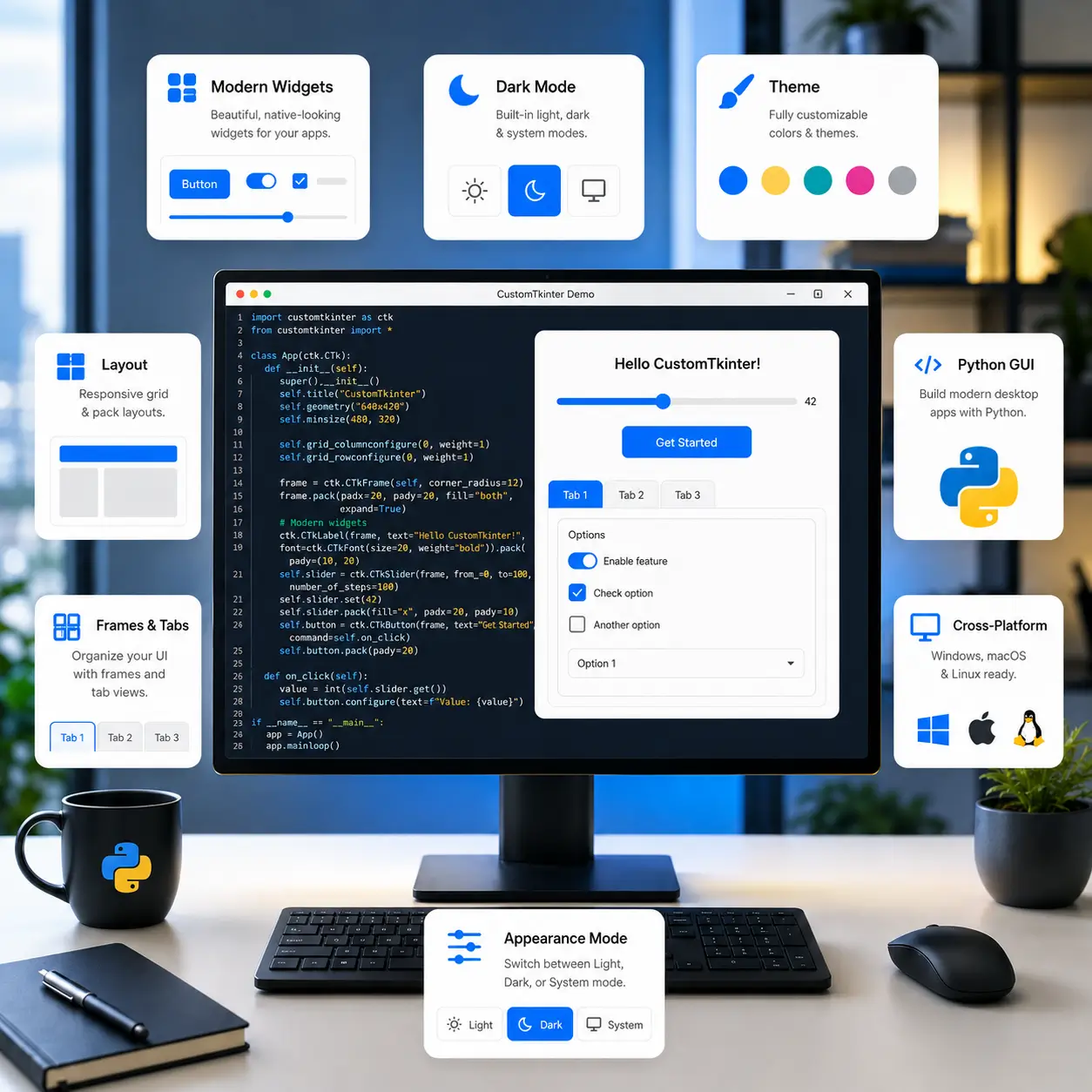
Who We Are
CustomTkinter is an independent informational platform created to help Python users understand modern GUI development with CustomTkinter. We focus on clear guides, practical examples, setup help, widget explanations, theme customization, and compatibility information so beginners and developers can build clean desktop apps without confusion.
Our Goal & Mission
1. Make CustomTkinter easier to understand for beginners and Python learners.
2. Help users build modern desktop apps with clean and practical guidance.
3. Provide simple installation, setup, and widget usage instructions.
4. Share helpful troubleshooting, layout, and compatibility information.
5. Keep every guide clear, useful, and easy to follow for real projects.
Core Features
Build modern desktop apps with CustomTkinter using flexible widgets, simple setup, and clean Python interface design.
Modern UI Widgets
Create polished buttons, sliders, inputs, tabs, frames, and controls.
Tkinter-Based Library
Use familiar Tkinter structure with a cleaner, modern interface.
Dark & Light Modes
Switch between dark, light, and system appearance modes easily.
Theme Customization
Adjust colors, styles, and themes to match your app.
Flexible Layouts
Organize screens with grids, frames, tabs, and containers.
Cross-Platform Ready
Design desktop apps for Windows, macOS, and Linux systems.
Simple Installation
Start quickly with an easy Python package installation process.
Clear Code Examples
Learn faster with practical examples and beginner-friendly patterns.
Professional App Design
Create dashboards, tools, utilities, and clean desktop interfaces.
How to Download and Install CustomTkinter
Follow these clear steps to install CustomTkinter and start building modern Python desktop applications.
Install Python on Your System
Make sure Python is installed and added to your system path.
Open Terminal or Command Prompt
Launch Command Prompt, PowerShell, Terminal, or your preferred code editor terminal.
Run the pip Install Command
Use the official pip command to install the CustomTkinter package.
Verify the Installation
Import CustomTkinter in Python to confirm the package is installed correctly.
Create a Basic GUI File
Make a new Python file and add a simple CustomTkinter app example.
Run and Test Your App
Start the file, check the window, and begin customizing your interface.

Download CustomTkinter
Available for Python projects.
Install now and start building modern desktop apps!
Supported devices & requirements
Check Python compatibility, Tkinter availability, operating system support, and package setup before installing CustomTkinter.
Windows Systems
Runs well on Windows devices with Python and Tkinter properly installed.
macOS Devices
Supports macOS development environments with compatible Python and GUI dependencies.
Linux Distributions
Works on many Linux systems when Python, Tkinter, and the required packages are available.
Python Environments
Suitable for virtual environments, code editors, and standard Python desktop projects.
Technical Specifications
At-a-glance details about CustomTkinter setup and compatibility.
Quick fixes for common issues
Find simple solutions for installation, loading, compatibility, and app performance problems.
CustomTkinter vs Other Python GUI Libraries
Compare CustomTkinter with other Python GUI options based on design flexibility, ease of use, setup, widgets, and desktop app experience.
| Comparison Point | CustomTkinter | Other GUI Libraries |
|---|---|---|
| Learning Curve | Beginner-friendly for Tkinter users | May require steeper learning |
| Interface Style | Modern widgets and clean visuals | Often needs extra styling |
| Tkinter Compatibility | Built to extend Tkinter | Different structure required |
| Setup Process | Simple Python package install | Can need more dependencies |
| Theme Control | Built-in appearance customization | Styling may be manual |
| Dark Mode Support | Native light and dark modes | May need custom handling |
| Desktop App Use | Great for tools and dashboards | Depends on framework choice |
| Project Complexity | Ideal for small to mid apps | Better for advanced scale |
What Developers Say About CustomTkinter
Real user-style feedback on CustomTkinter design, setup simplicity, widget flexibility, theme control, and Python desktop app development.
“CustomTkinter made my Python dashboard look clean without learning a completely new GUI framework.”
“The dark mode and theme options helped me create a polished app interface much faster.”
“Installation was simple, and the Tkinter-based workflow felt familiar from the first project.”
“The widget styling looks professional, especially for small desktop tools and internal utilities.”
“I liked how quickly I could build forms, panels, buttons, and layout sections.”
“CustomTkinter feels practical for learning GUI design while still producing modern-looking applications.”
Frequently asked questions
Find quick answers about CustomTkinter installation, setup, compatibility, troubleshooting, widgets, themes, and Python GUI development.
CustomTkinter Basics
CustomTkinter is a modern Python UI library built on Tkinter for creating cleaner desktop application interfaces.
It is used to build desktop tools, dashboards, forms, utilities, panels, and modern Python GUI applications.
Yes, it is beginner friendly, especially for users who already understand basic Python and Tkinter concepts.
No, it extends Tkinter by adding modern widgets, appearance modes, themes, and cleaner interface styling.
Yes, CustomTkinter can work alongside many normal Tkinter widgets inside the same Python application.
Yes, it is useful for small to medium desktop apps that need a clean, modern interface.
Installation & Support
You can install it with pip by running the CustomTkinter installation command inside your terminal.
Update pip, check your Python version, confirm internet access, and install it in the correct environment.
CustomTkinter can be used on Windows, macOS, and Linux when Python and Tkinter are properly available.
Check parent frames, layout methods, widget placement, padding, and whether the mainloop is running correctly.
Set the appearance mode before creating the main app window and confirm the command is correct.
Read the traceback, test recent changes, verify imports, and debug widgets step by step carefully.